Pabbly Connect Integration
Connect Superfone to 1,000+ apps using Pabbly Connect — a no-code automation platform. Trigger Superfone actions from any app, or push Superfone call and lead events into your other tools, without writing a single line of code.
Every Superfone action in Pabbly runs against your organization's data and requires a Superfone API key. You connect your account once (see How to connect) and every action reuses that connection.
What you can do
- Trigger workflows when calls complete, recordings are ready, or leads change in Superfone.
- Create or update leads in your Superfone CRM from form submissions, payments, or any other app.
- Manage tasks against a lead — create, complete, and list follow-ups.
- Start calls between a team member and a customer (click-to-call).
Prerequisites
| Requirement | Details |
|---|---|
| Superfone account | An active Superfone organization with CRM access. |
| API key | Provisioned per organization. Don't have one? Contact your Superfone account manager or support. |
| Pabbly Connect account | A free or paid Pabbly Connect account. |
How to connect your Superfone account
- In your Pabbly workflow, add a Superfone action (or trigger).
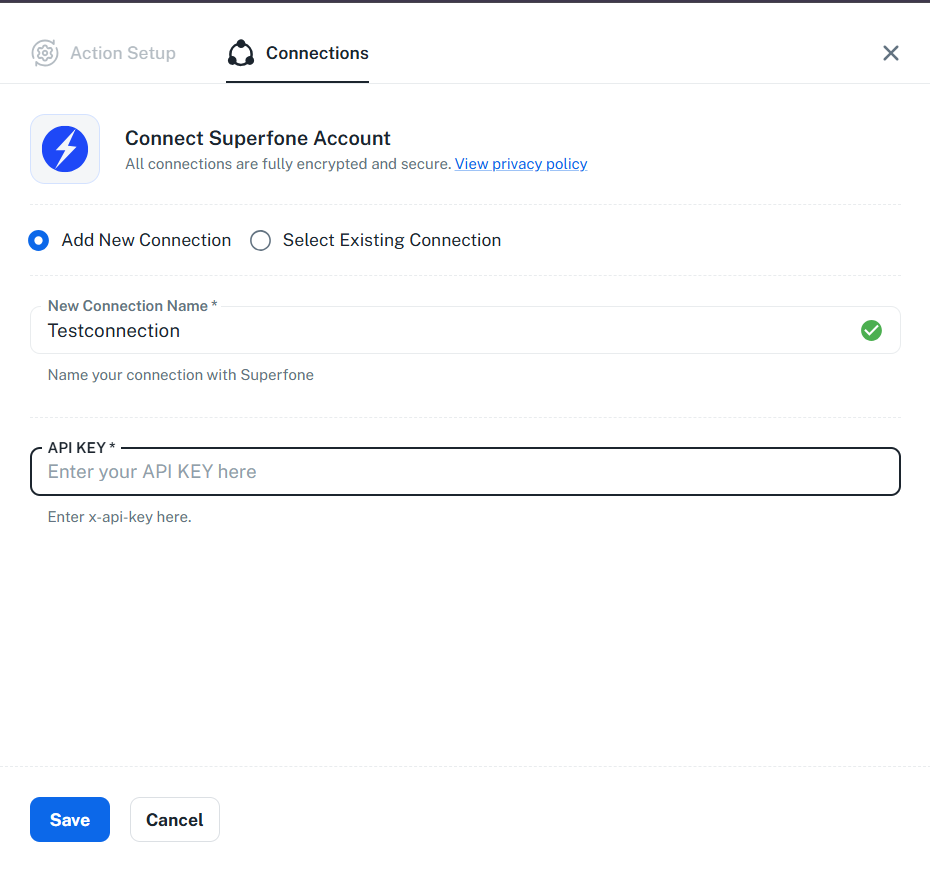
- When prompted to Connect with Superfone, choose Add New Connection.
- Paste your Superfone API key into the connection field.
- Save. Pabbly automatically validates the key (see Check Auth below).
How Check Auth works
When you save a connection, Pabbly runs a hidden Check Auth step that calls a Superfone validation endpoint with your API key:
- Valid key → connection is saved and ready to use.
- Invalid / expired key → Pabbly shows an authentication error and the connection is rejected.
You don't configure this — it runs automatically on connect. If it fails, double-check the API key was pasted correctly with no extra spaces.
Base URL
All Superfone endpoints used by this integration are served under:
https://prod-api.superfone.co.in/superfone
You never need to enter this manually — the Pabbly app is pre-configured with it. It is listed here for reference only.
Phone number format
All phone numbers must be in E.164 format — a leading +, country code, and number with no spaces or dashes.
✅ +918000000001
❌ 8000000001, 08000000001, +91 80000 00001
Numbers in any other format will be rejected.
Common workflow patterns
A few real examples of how the pieces fit together:
- Lead capture: New form submission → Create or Update Lead → Create Task (follow-up call tomorrow).
- Call logging: Call Completed trigger → Get Lead (by phone) → Create Task (callback).
- Outbound dialing: New row in a sheet → Initiate Click-to-Call (agent → customer).
- Task hygiene: Deal marked won in CRM → Complete Task for that lead.
See Actions for the full list and per-action details.