Zapier Integration
Connect Superfone to your favorite apps using Zapier — automate workflows between Superfone and the tools you already use, without writing any code.
Every Superfone step in a Zap runs against your organization's data and requires a Superfone API key. You connect your account once (see How to connect) and every action reuses that connection.
The Superfone Zapier app is currently in private development and is not yet publicly listed in the Zapier App Directory. This documentation is provided for early-access reference.
What you can do
- Create or update leads in your Superfone CRM from form submissions, payments, or any other app.
- Look up leads by phone number to chain follow-up actions.
- Manage tasks against a lead — create, complete, and list follow-ups.
- Start calls between a team member and a customer (click-to-call).
- Fetch call recordings from completed calls (where available).
Prerequisites
| Requirement | Details |
|---|---|
| Superfone account | An active Superfone organization with CRM access. |
| API key | Available in your Superfone dashboard → Settings → API Keys. |
| Zapier account | A free or paid Zapier account. |
How to connect your Superfone account
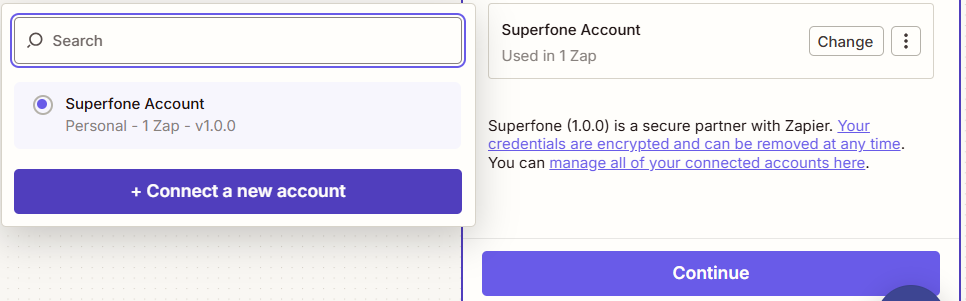
- In your Zap, add a Superfone action (or search step).
- When prompted to Choose Account, click Connect a new account.
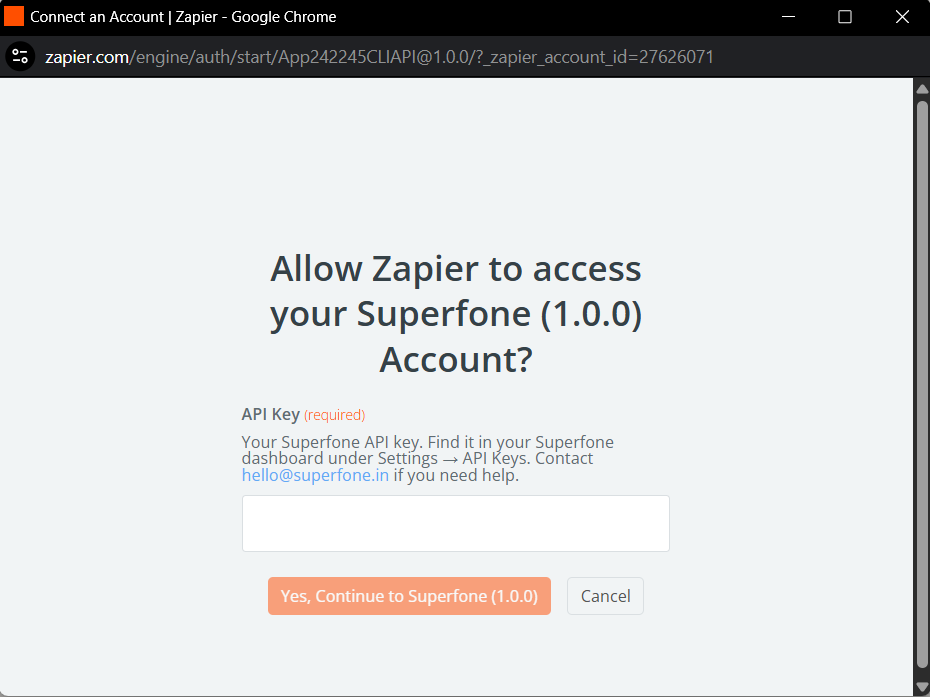
- Paste your Superfone API key into the API Key field.
- Click Yes, Continue to Superfone. Zapier automatically validates the key (see Check Auth below).
How Check Auth works
When you connect a Superfone account, Zapier runs a hidden Check Auth step that calls a Superfone validation endpoint with your API key:
- Valid key → connection is saved and ready to use.
- Invalid / expired key → Zapier shows an authentication error and the connection is rejected.
You don't configure this — it runs automatically on connect. If it fails, double-check the API key was pasted correctly with no extra spaces.
Base URL
All Superfone endpoints used by this integration are served under:
https://prod-api.superfone.co.in/superfone
You never need to enter this manually — the Zapier app is pre-configured with it. It is listed here for reference only.
Phone number format
All phone numbers must be in E.164 format — a leading +, country code, and number with no spaces or dashes.
✅ +919999999999
❌ 9999999999, 09999999999, +91 99999 99999
Numbers in any other format will be rejected.
Searches vs Actions
Zapier separates Searches (look something up) from Actions (do something). Superfone exposes both:
| Search steps | Action steps |
|---|---|
| Get Lead by Phone, List Tasks, Get Call Recording URL | Create or Update Lead, Create Task, Complete Task, Initiate Click-to-Call |
Pair a Get Lead by Phone search with Create or Update Lead to automatically create the lead when the search finds none. Zapier's "Find or Create" pattern is the typical shape for ingesting leads from external apps without writing any branching logic.
Triggers (coming soon)
Superfone triggers — Call Completed, New Lead, Recording Ready — are planned for Phase 2 and are not part of the current Zapier app. Workflow examples that reference triggers (e.g. "Call Completed → Get Lead") will start working once that phase ships.
Common workflow patterns
- Lead capture: New form submission → Get Lead by Phone + Create or Update Lead (Find or Create) → Create Task (follow-up call tomorrow).
- Outbound dialing: New row in a sheet → Initiate Click-to-Call (agent → customer).
- Task hygiene: Deal marked won in CRM → Complete Task for that lead.
See Actions for the full list and per-action details.