Customer Management — Initiate Click-to-Call
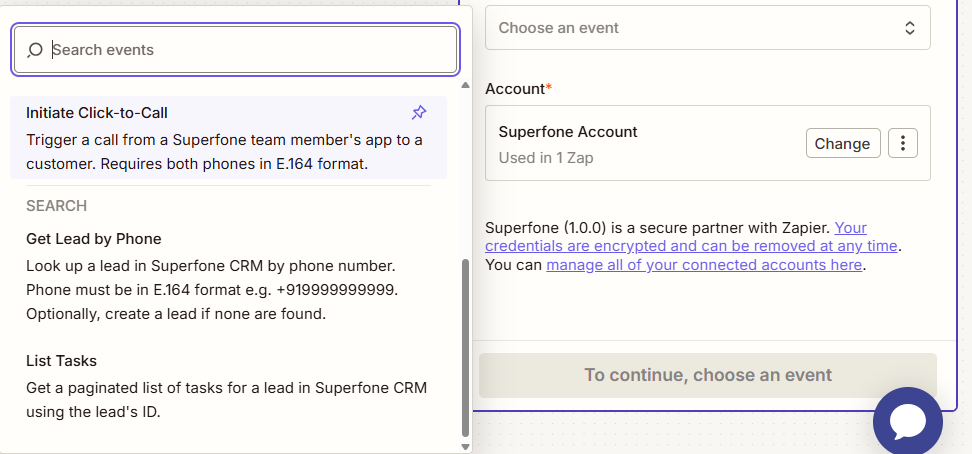
Triggers a call between a team member and a customer. Superfone notifies the team member's app, which then dials the customer; the call shows your organization's Superfone number as the caller ID. The same action can also end an active call.
This is a Zapier Action step.
Authentication Required
Runs against your organization using the Superfone connection (your API key).
Endpoint
GET https://prod-api.superfone.co.in/superfone/api/customer/click-2-call
Input fields
| Field | Type | Required | Description |
|---|---|---|---|
agent_phone | string | Yes | Phone number of the team member who will make the call (E.164). Maps to the API's user_number. |
customer_phone | string | Yes | Phone number of the customer to call (E.164). Maps to the API's customer_number. |
call_action | dropdown (START / END) | No | START (default) initiates the call; END terminates an active call between the same agent and customer. |
How to use in Zapier
- Add the Initiate Click-to-Call action.
- Map
agent_phone(the team member) andcustomer_phone(the customer), both in E.164. - Leave Call Action as
STARTto initiate the call, or set it toENDto terminate an active call between the same two numbers. - Save and test — a call notification is sent to the team member's device.
Example workflow
New high-priority lead row in a sheet → Initiate Click-to-Call (
agent_phone= on-duty rep,customer_phone= the new lead,call_action=START).
Requirements
warning
- The team member must have the Superfone app installed, be logged in, and have Dashboard Calling enabled.
- Each agent can have only one active call at a time.
- Both numbers must be in E.164 format.