Customer Management — Create Task
Creates a task (follow-up, reminder, site visit, etc.) against a specific lead.
This is a Zapier Action step.
Runs against your organization using the Superfone connection (your API key).
Prerequisites
You need the lead's lead_id. If you only have a phone number, run Get Lead by Phone first and map its id into lead_id here.
Endpoint
POST https://prod-api.superfone.co.in/superfone/enterprise/api/lead/{lead_id}/task
Input fields
| Field | Type | Required | Description |
|---|---|---|---|
lead_id | number | Yes | The lead to attach the task to. Obtain it from Get Lead by Phone. |
type | dropdown | Yes | Task type. Choose from the visible types: FOLLOW_UP_CALL, FIRST_CALL, CALLBACK_REQUEST, SITE_VISIT, REMINDER, BOOKING. |
due_date | string (ISO 8601) | Yes | When the task is due, e.g. 2026-06-01T10:30:00Z. |
notify_at | string (ISO 8601) | No | When to send the reminder notification. Must be in the future and at or before due_date. If omitted, it's derived from the task type: REMINDER notifies at the due time, FIRST_CALL notifies immediately, and all other types notify 10 minutes before due_date. |
customer_note | string | No | A note attached to both the task and the lead's timeline. |
type must be one of the visible task types listed above. System-only types (e.g. AUTO_FOLLOW_UP, CALL) cannot be created via this action and will return a 400.
Creating a non-reminder task automatically closes any other open non-reminder task on the same lead. Reminders are independent and don't trigger this behavior.
How to use in Zapier
- Add the Create Task action.
- Map
lead_id(from a Get Lead by Phone step). - Pick a
typefrom the dropdown and set adue_date(ISO 8601). - Optionally set
notify_atand acustomer_note. - Save and test.
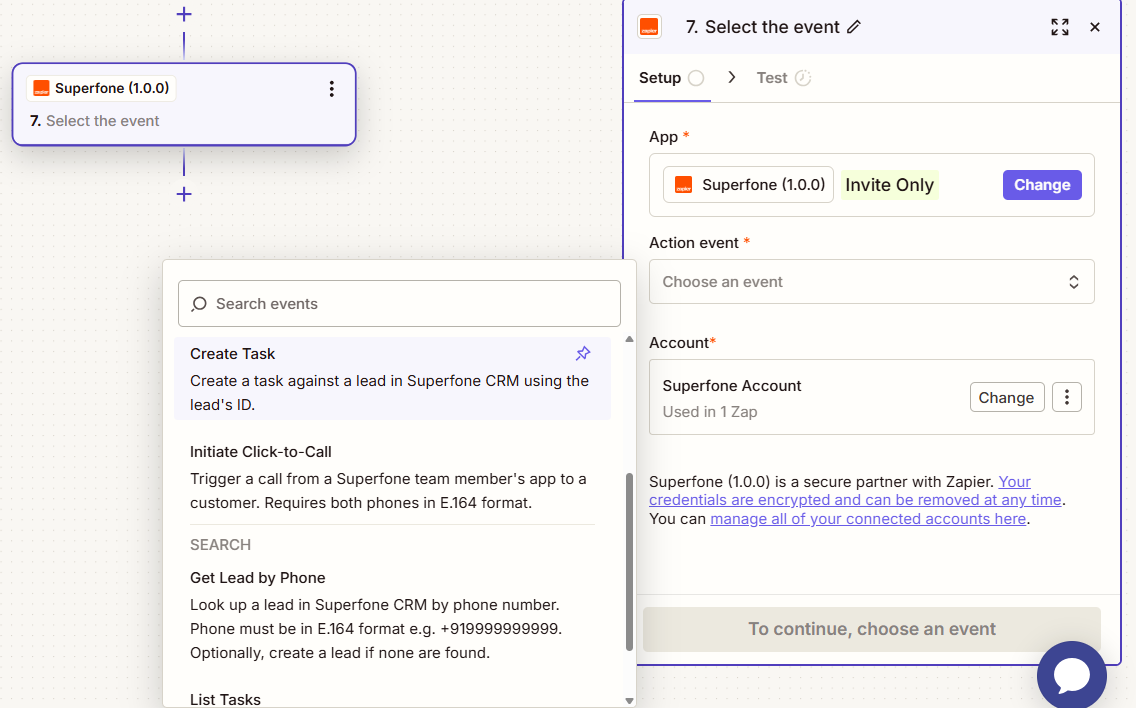
Example workflow
New form submission → Get Lead by Phone + Create or Update Lead (Find or Create) → Create Task (
type=FOLLOW_UP_CALL,due_date= tomorrow 10:00).