Customer Management — Create or Update Lead
Upserts a lead in your Superfone CRM, matched by phone number. If a lead with that phone already exists it is updated; otherwise a new lead is created (when enabled).
This action runs against your organization using the Superfone connection (your API key).
Endpoint
POST https://prod-api.superfone.co.in/superfone/enterprise/api/lead
Input fields
| Field | Type | Required | Description |
|---|---|---|---|
customer_phone | string | Yes | The lead's phone number in E.164 format (e.g. +918000000001). Used to match an existing lead or create a new one. |
create_customer_if_customer_phone_not_found | boolean | No | If true, creates a new lead when no match is found. If false/omitted, a missing lead is not created. This is the "upsert" toggle. |
first_name | string | No | Lead's first name. |
last_name | string | No | Lead's last name. |
email | array of strings | No | One or more email addresses. |
business_name | string | No | Company / business name. |
website | string | No | Website URL. |
city | string | No | City. |
deal_value | number | No | Monetary value of the deal. |
source | string | No | Free-text source label. |
source_type | dropdown | No | Lead source type — dropdown populated by List Source Types. |
lead_stage_name | dropdown | No | Pipeline stage — dropdown populated by List Lead Stages. |
lead_group_name | dropdown | No | Lead group — dropdown populated by List Lead Groups. |
add_labels | array (dropdown) | No | Labels to add — dropdown populated by List Labels. |
remove_labels | array (dropdown) | No | Labels to remove — dropdown populated by List Labels. |
add_products | array (dropdown) | No | Products to attach — dropdown populated by List Products. |
add_phones | array of strings | No | Additional phone numbers for the lead (E.164). |
assignee_user_phone | string | No | Phone number of the team member to assign this lead to (E.164). |
additional_info | string | No | Free-text notes stored on the lead. |
customer_note | string | No | Adds a note to the lead's timeline. |
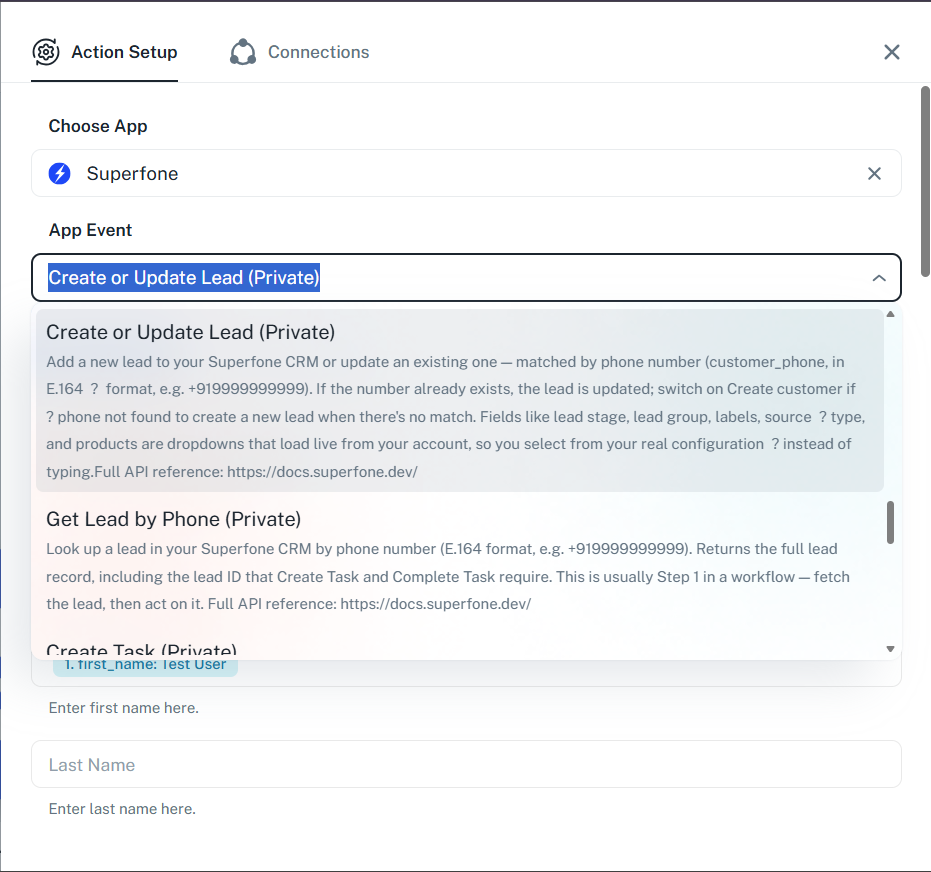
Fields marked dropdown load live values from your account, so you select from your real configuration instead of typing. See Dropdowns.
How to use in Pabbly
- Add the Create or Update Lead action to your workflow.
- Map
customer_phonefrom the previous step (ensure E.164 format). - Fill any other fields; pick from dropdowns where shown.
- Turn on Create customer if phone not found if you want new leads created.
- Save and send a test.
Example workflow
New paid order in your store → Create or Update Lead (phone from the order,
source_type= Online,lead_stage_name= New Paid Cx,create_customer_if_customer_phone_not_found= true) → Create Task (follow-up call tomorrow).
Response
Status Code: 200 OK
{
  "data": null,
  "message": "success"
}
The lead is created or updated; the action returns a success envelope rather than the lead body. To read the lead back (and get its lead_id), use Get Lead.
Common errors
| Status Code | When it occurs | How to fix |
|---|---|---|
400 | Invalid phone format; a field validation failure; or the phone matched no lead and Create customer if phone not found was off (Customer not found) | Ensure customer_phone is E.164; check field types (e.g. email is a list, deal_value is a number); turn on the create toggle to create new leads. |
401 | Missing or invalid API key | Reconnect your Superfone account in Pabbly. |
404 | A referenced name doesn't exist in your account — an unknown lead_stage_name, lead_group_name, or assignee_user_phone | Pick values from the dropdowns; make sure the assignee is an existing team member. |